A useful Shopify product video answers a question the still photos leave open: how the shape changes from another angle, how a handle sits, or what the product looks like as it turns. This walkthrough covers making the asset with RotateProduct and placing a reviewed MP4 in the product gallery.
Keep the real photos. A rotation video supports them; an AI-generated view should not become the only evidence for exact labels, measurements or hidden details.
Choose the app or a downloaded video
The RotateProduct Shopify app lets merchants work with product images and generated rotations inside Shopify. Open its App Store listing, choose Install and follow Shopify's installation prompts for your store. Review its current permissions and billing terms there: the app's charges should not be assumed to match the separate web subscription.
Open the installed app from Shopify's Apps area and use its current product-image generation flow. Review the finished video before using the app's product-page placement option. The listing describes direct placement, but individual controls can change. The manual MP4 route below remains useful when you generate through rotateproduct.com or want to control the upload yourself.
For that route, make a product rotation from one photo, inspect it and download the clean MP4. The web app offers one watermarked preview; a subscription is needed to unlock its clean copy. See the web plans for current terms.
Prepare a gallery-friendly clip
Choose a composition that suits your product gallery. If your photos are square, a square video may avoid a sudden change in framing. A tall bag or bottle can need extra space above and below. Check the theme's actual display rather than assuming the file's full frame will always be visible.
Use an uncluttered opening frame. A shopper may see a thumbnail before playing the clip. Avoid essential text at the edges, where a theme or mobile crop could obscure it. Check logos and product details throughout the turn using the accuracy review checklist.
Source photo
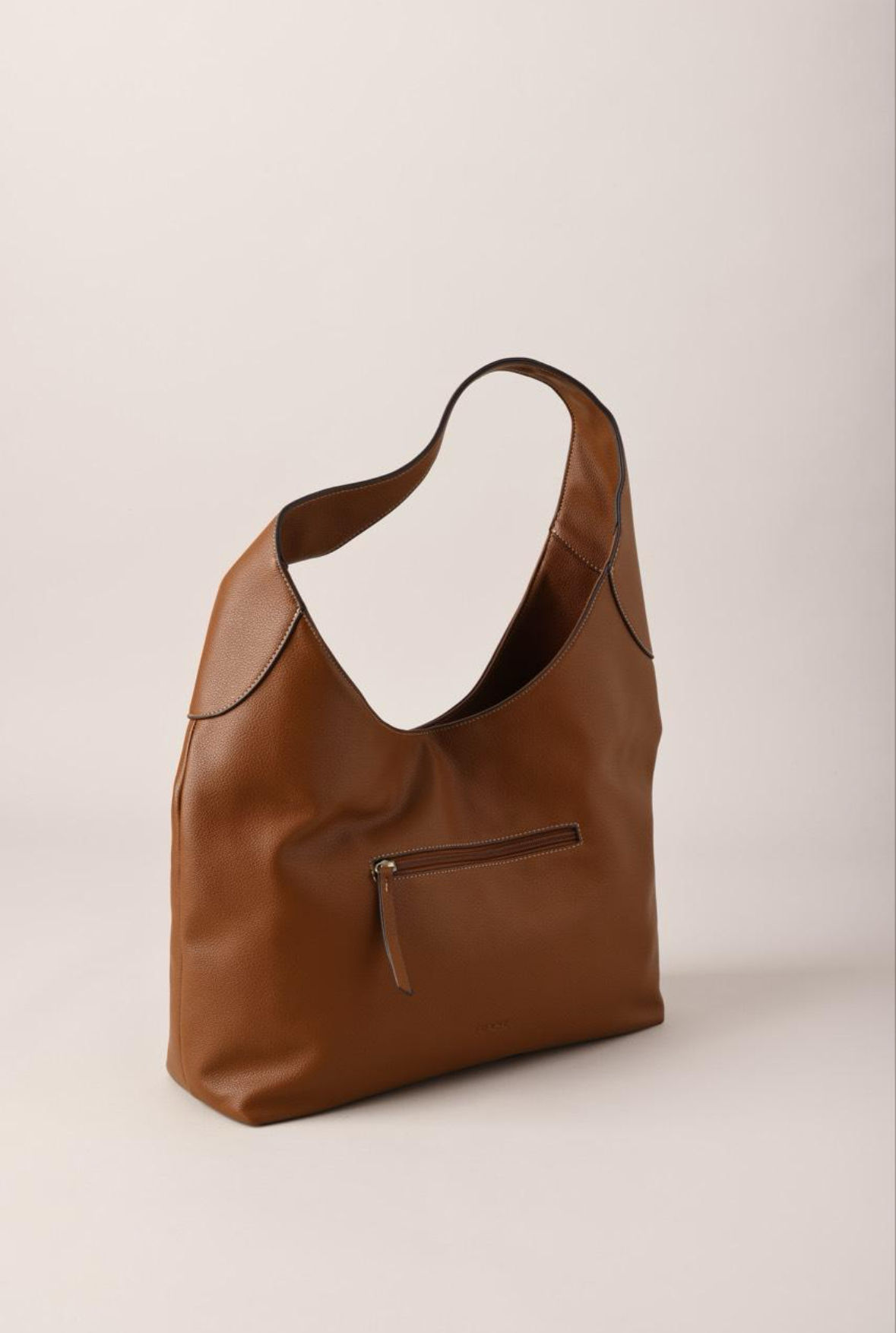
Generated video · press play
This is an existing RotateProduct demonstration. It illustrates the kind of short rotation asset you can review before adding it to a store; it is not a screenshot of a Shopify installation.
Upload the MP4 to the product
In Shopify admin, open Products and select the item. In its Media section, use the upload option to add the MP4, wait for processing and save the product. Reorder the media so customers can find the video alongside the most useful photos. Keep a clear real photo as the lead asset if that best explains the product.
These steps follow Shopify's official product-media instructions. Check that page for current requirements and plan limits. Renaming another file's extension to .mp4 does not convert it into a supported video.
Check the storefront, not just the admin preview
Open the published product page while signed out, then check it on a phone as well. Your theme determines how product media are displayed. Confirm that the video is visible, playback works, the item stays in frame and a customer can still inspect the real photos.
- Does the thumbnail make the video easy to recognise?
- Can a customer start and pause it without sound being forced on?
- Do variant selections still show the right media?
- Does the page remain usable before the video has loaded?
- Do the side and rear views accurately represent the item you will ship?
If a video is missing, check whether processing has finished and whether the theme supports product video. Use a local MP4 upload to separate a file problem from a remote-link problem. For persistent upload errors, follow the troubleshooting section in Shopify's media documentation.
Give the video a specific job
Place it near the question it answers. A rotation can help explain shape, while a real close-up may be better for a clasp or an ingredient list. Avoid filling the gallery with multiple versions that show the same thing.
The Shopify product-page checklist helps review the surrounding page. If playback adds noticeable weight, use the video delivery guide to diagnose the file and player separately.
Compare performance with similar traffic and a clear success metric. Do not attribute every sales change to the new clip, especially if you also changed price, traffic or the offer. Start with one reviewed product rotation video, make sure it works for customers, then expand to other products.
Try it with your product photo
Make a 360 product spin video from one photo. Your first preview has a watermark; a subscription unlocks the clean download.