A short video can show the shape of an item more clearly than another front-facing photo. This guide covers preparing an MP4, adding it on Etsy.com or in the Etsy Seller app, and checking what buyers actually see. If you already have an accurate clip, skip straight to the upload steps.
Prepare a short MP4
Etsy accepts MP4 files up to 100 MB and removes audio after upload. Its video help page gives a minimum resolution of 500 pixels and recommends at least 1080 pixels. Listings can contain up to two videos. Etsy's listing-video requirements.
Choose a five- or ten-second clip. Etsy's listing creation guide specifies 5–15 seconds, while its dedicated video page says 3–15. Five or ten seconds fits both published ranges. These instructions were checked on 16 October 2026; check the linked help pages if the upload form changes.
Keep the product comfortably inside the frame throughout the movement. Avoid stretching it to fill a different shape. Preview the uploaded result before deciding that the crop works for your item.
Use the MP4 download from RotateProduct for this workflow. Animated WebP is a different output and is not the video file to choose here. If an existing clip needs reducing, see the video format and file-size guide. Check the file's actual size rather than assuming that every short clip is small.
Start with the actual item
Choose an item you are eligible to sell on Etsy and a photo you have the right to use. Etsy's listing image policy generally requires original photos of the actual product, with specific exceptions for some customized and production-partner items. Keep the real product photographs in the listing.
Treat an AI rotation as additional presentation material that needs review. The upload instructions describe how to attach a file; they do not establish that a particular generated video complies with Etsy's content policies. Check the policies that apply to your item before publishing.
For a one-photo rotation, start with a sharp image that shows the whole object. Leave space around handles, straps and other projecting parts. Use the source-photo checklist if you need to take a better starting image.
Example: from a tumbler photo to a rotation video
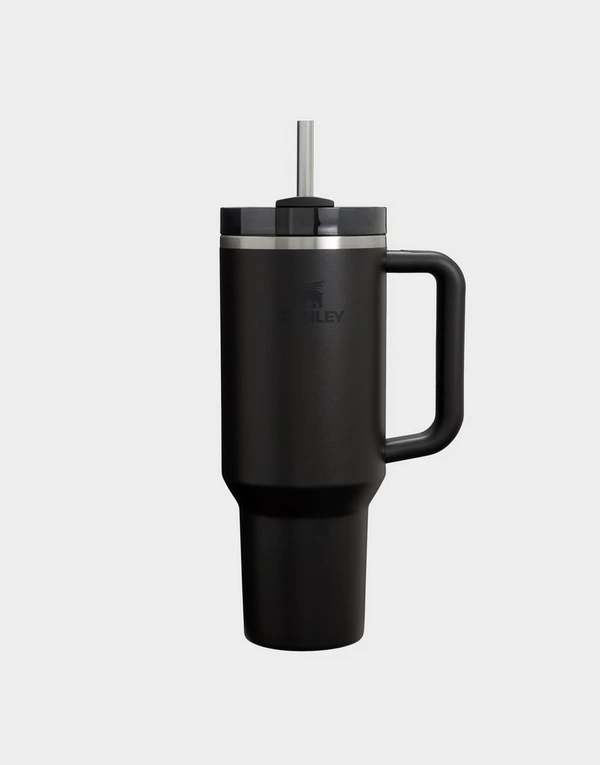
The source image and video below are an existing RotateProduct demonstration. They illustrate framing and motion, rather than an actual Etsy listing or a claim that this tumbler is eligible for sale there. The original generation settings were not recorded.
Source photo
Generated video · press play
Watch the handle, lid, straw and outline as the tumbler turns. Those are useful review points for a product with projecting parts. For your own item, also check lettering, decorative patterns, colour and surface finish against the physical product.
AI infers sides it cannot see. If a rear design, maker's mark or construction detail matters to the purchase, verify it with real photographs. Use a real recorded clip when a generated version cannot represent the item accurately.
To make your own clip, follow the one-photo product-video tutorial. Your first RotateProduct preview is watermarked; a subscription unlocks its clean copy. Review that preview before paying for a plan, and check current pricing for the available options. For subsequent generations, choose a five- or ten-second duration and a suitable resolution from the options shown for your selected mode.
Add the video on Etsy.com
- Open Shop Manager, then Listings.
- Choose the listing you want to edit, or create a new one.
- Find Photo and video.
- Drag in the MP4, or select Upload and choose it.
These are Etsy's documented desktop upload steps. Review the result and finish saving your changes. For a new listing, complete the required listing details and choose Publish to make it live, or Save as Draft to finish later. Etsy's listing creation guide.
Add the video in the Etsy Seller app
- Open Listings and choose the item.
- Select Listing to open its details.
- Under Photo and video, tap the plus, or use View all, then Add a video.
- Choose your MP4.
Follow the app's save or publish flow after reviewing it. Etsy's Seller app upload instructions.
Check the published listing
Open the buyer-facing listing on a phone and a desktop browser. A successful upload is only the first check.
- Play the whole video. Confirm the item stays visible and the opening frame is useful.
- Compare the clip with the still photos. Check that the finish, pattern, attachments and quantity agree.
- Check the displayed crop, especially around handles and other edges.
- Make sure the real lead photo and important detail photos remain easy to find.
- Watch without sound. The product should make sense through the image alone.
If a generated detail bends, disappears or changes, fix the asset before uploading another version. The rotation error guide explains what to check and when to use real media instead.
If the upload does not work
Check that you selected the downloaded MP4 rather than a poster image or animated WebP. Inspect its duration, resolution and file size against the current requirements linked above. Try opening the local file to confirm that the download completed.
If the local video plays but Etsy still rejects it, keep the exact error message and use Etsy's Help Center for that upload problem. Regenerating the rotation is unlikely to solve an unrelated listing-form error.
Start with one reviewed listing. Note the upload date and any other changes you make so you can assess the result without attributing every movement in sales to the video.
Try it with your product photo
Make a 360 product spin video from one photo. Your first preview has a watermark; a subscription unlocks the clean download.